
Trading System in Keyboard Slide 1 Speed
The August 2026 update added player-to-player trading. Exchange Items Shop products with nearby players — but only if both sides agree.
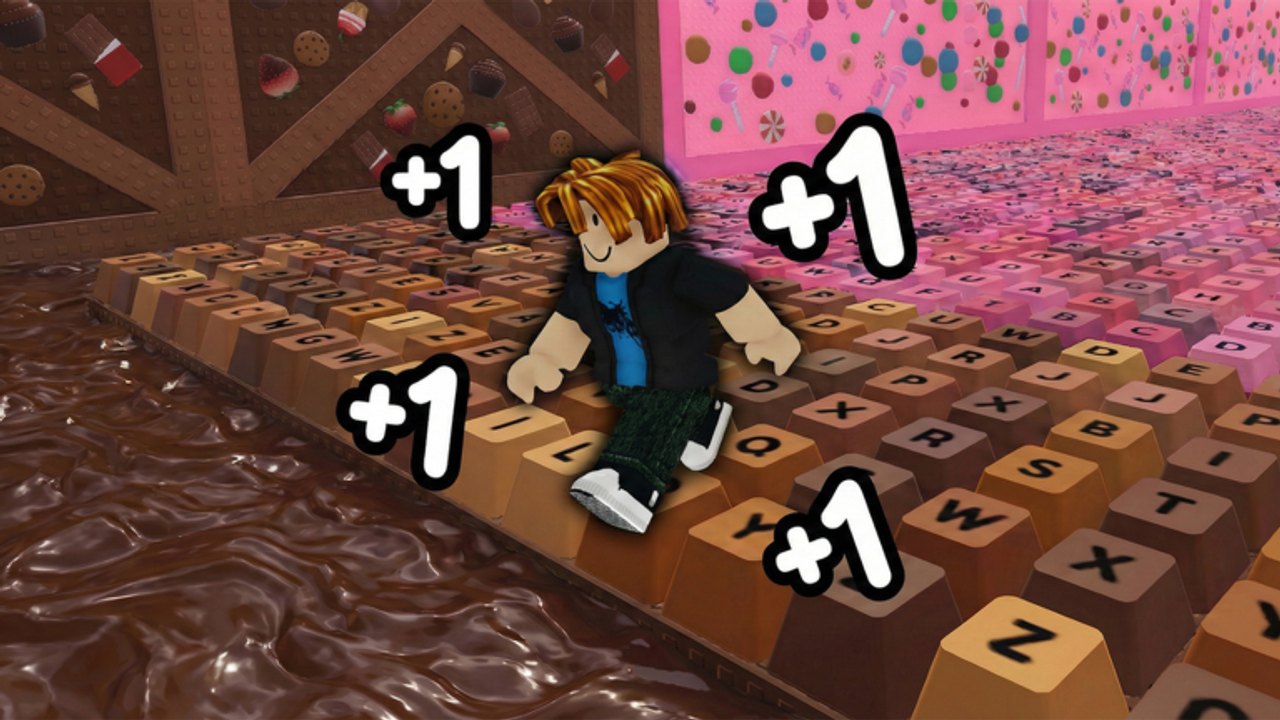
The August 16, 2026 update added a full trading system to Keyboard Slide 1 Speed. For the first time, players can exchange Items Shop products directly with each other. The system is opt-in — both players must agree before anything exchanges. This page covers how the trading panel works, what items are currently tradable, and how to avoid the most common trading mistakes.
How to open the trading panel
The trading panel is on the right side of your screen during gameplay. It shows players who are currently in the same server and near your location. You do not need to be friends to trade — proximity in the game world is what matters. If you do not see any available players in the panel, try moving to the lobby where player density is highest, or wait for a more active time of day.
Trade request flow
The complete trade flow has five steps:
- Open the trading panel on the right side of the screen. A list of nearby players appears.
- Click the player avatar you want to trade with. This opens a trade request form.
- Send the trade request. The other player receives a prompt and can accept or decline.
- Both players select items from their inventory and drag them into the shared trade window.
- Both players press Ready. A five-second countdown starts. Either player can cancel during the countdown. After the countdown, the exchange is final.
What items are tradable
Current tradable items include products from the Items Shop such as Strawberry Milkshake, Chocolate Kart, White Chocolate Ice Cream, and other available shop items. The full list of tradable items changes as the shop restocks and as the game adds new products. Check the official trade window for the current list — the wiki cannot maintain a real-time inventory of what is tradable at any given moment.
Auras, trails, and rebirth-related items are not listed in the known tradable category. Most permanent progression items are account-bound and cannot leave your inventory through trading.
Trade safety rules
Trades cannot be reversed once the countdown finishes. This is the single most important rule. Before pressing Ready, check every item in the trade window twice. Confirm that both the items you are sending and the items you are receiving are exactly what was agreed upon.
Chat with the other player before trading to confirm both sides understand the exchange. If the other player is rushing you or pressuring you to confirm quickly, that is a warning sign. Take your time. A legitimate trader will not mind a 30-second pause to review the trade.
Common trading mistakes
The most frequent mistake is accepting a trade too quickly. New traders see the Ready button and the countdown and feel pressure to confirm before time runs out. Do not let the countdown pressure you. You can review the trade window for as long as you need before both players are ready.
Another common mistake is assuming a player’s suggested value is correct. There is no official market value or fixed exchange rate for Items Shop products because the trading system is new. Compare what you are being offered against what you know the item is worth to you. If something feels off, walk away.
After the trade
After the countdown finishes and the exchange completes, check your inventory immediately to confirm everything arrived. If an item is missing or an incorrect item was received, there is no recovery mechanism — the trade is permanent. Contact Roblox support only if there is evidence of a bug or technical error on the platform side, not for regretted trades.
Trading tips for collectors
If you are working toward a full Items Shop collection, trading is faster than waiting for restocks. Duplicate items you no longer need can be traded for items you are missing. Since there is no established item economy yet, early traders set the terms. Use this window to complete your collection before an informal market value stabilizes.
Frequently Asked Questions
Quick answers to the most common Keyboard Slide 1 Speed questions.
How do I open the trading panel?
The trading panel is on the right side of your screen during gameplay. It shows nearby players in the same server.
Can I trade auras and trails?
Auras and trails are not listed in the currently known tradable category. Most permanent progression items are account-bound.
What happens if I regret a trade?
Trades cannot be reversed after the countdown finishes. Always review every item before pressing Ready.
Do I need to be friends with someone to trade?
No. Proximity in the game world is what matters. Friends are not required.
Can I cancel a trade during the countdown?
Yes. Either player can cancel at any point during the five-second countdown.