
Game Settings in Keyboard Slide 1 Speed
Sound packs, camera, mobile stick, graphics — everything the Roblox client actually lets you change.
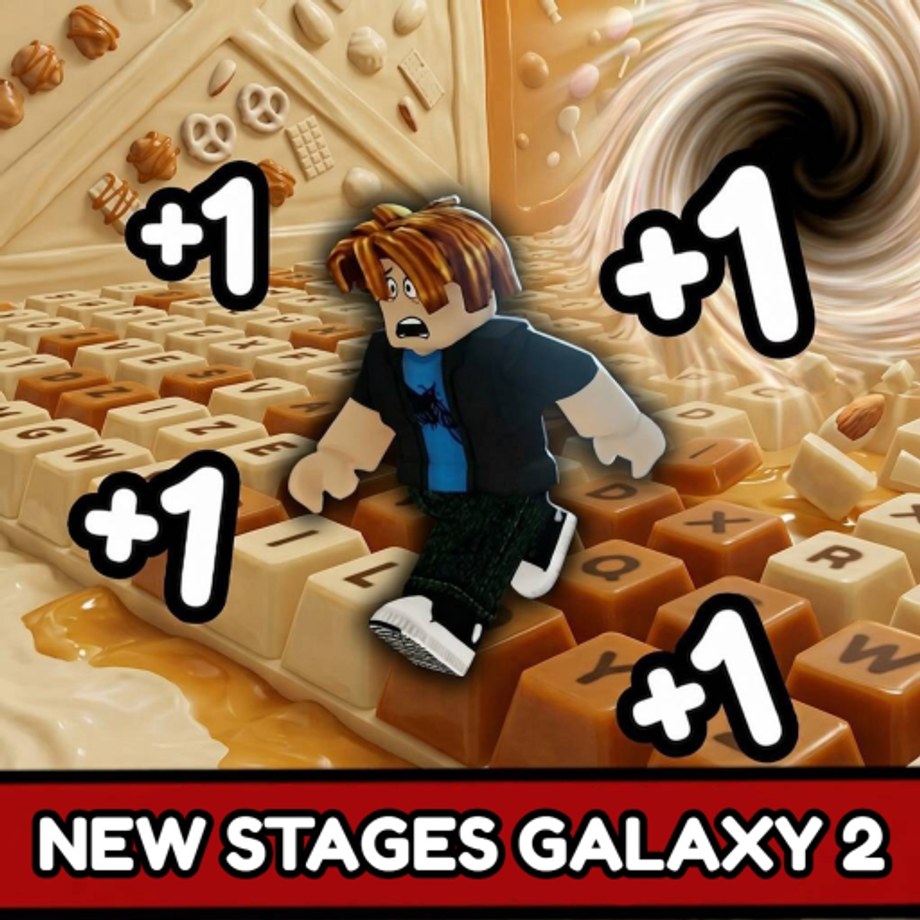
The Game Settings Hub covers in-game options for Keyboard Slide 1 Speed: sound packs, keybind layouts, camera sensitivity, mobile stick sizing, graphics quality, and account settings. SecretVerse Studio ships settings inside the Roblox client, not in a separate menu. This hub maps every accessible toggle so new players do not waste time hunting options that do not exist. Open the page that matches the setting you need to change, then return to the game for the actual toggle.
Sound packs
Open settings and pick a creamy click sound pack. Keyboard Slide 1 Speed uses keycap audio as a landing cue on candy and chocolate keys. Creamy clicks stay readable at high step rates because they do not compress as aggressively as sharp clicks at speed. Unlock extra packs if you want variety, but creamy is the default recommendation for speedruns. The sound does not raise Speed — it only tells you when you successfully pressed a key. Silence means you walked off a treadmill or missed a candy jump, which is why many runners keep audio on even when music would be more pleasant.
Camera sensitivity
Mouse camera on PC controls the view while running. High Speed after a rebirth spike makes the camera feel twitchy because the field of view moves faster than your thumb can correct. Slow it before World 1 Stage 10 boss or Stage 12 maze rather than trying to aim through the blur. Most players settle between 0.5x and 0.7x multiplier on the slider inside the Roblox settings panel. Mobile camera drag replaces the mouse entirely. Camera drag speed is separate from the on-screen stick travel — changing one does not change the other. If your character spins when you only meant to move, the camera drag is too high for your thumb travel.
Mobile stick sizing
The on-screen movement stick appears bottom-left on mobile devices. Drag its travel circle to a smaller size than you think you need, especially on World 2 neon keys and World 3 lollipops where thumb drift sends players off the left edge of a key they could have held. The stick does not change WASD on PC — it only affects the mobile virtual input. A smaller stick means less thumb travel is required to reach full movement speed, which reduces fatigue during long treadmill sessions and gives you finer control when navigating narrow platforms. Test the stick size in the lobby before entering a world.
Graphics and performance
Roblox handles graphics across PC, mobile, and console from a single settings panel. Lower graphics if the lobby runs hot or if treadmills cause frame drops during AFK farming. Frame drops on treadmills cost you ticks because the game cannot register keypresses it did not see. Higher graphics only matter for the trail particle effect and the aura glow you actually wear — not for the keys themselves, which are simple geometric shapes that do not benefit from extra rendering quality. Set mobile graphics to the minimum if you play on a phone that gets warm, even if the visual downgrade feels unpleasant.
Keybind layout
WASD moves your character. Space jumps. Mouse steering controls camera direction. E purchases from digit buttons and shop prompts. The digit buttons themselves (+5, +10, +25, +50, +500) are always available in the lower portion of the screen and do not require E — E is specifically for shop dialogs and confirmation prompts that appear above the digit panel. There is no rebind menu listed in the current settings. Keyboard Slide 1 Speed does not expose custom keybinds in a settings panel, which means all players share the same physical layout. This is not a competitive disadvantage — it means every guide and route you see in videos uses the same keys you have.
Account and Roblox settings
Sign in to Roblox before joining so progress saves to your account rather than the local session. Privacy settings, two-step verification, and parental controls live in the Roblox website settings, not in the Keyboard Slide 1 Speed experience settings panel. This wiki cannot change your Roblox account settings. If you are playing on a child account with restrictions, some features may be invisible or inaccessible even if the wiki describes them as available. Check roblox.com/my/account for account-level restrictions.
Performance diagnosis checklist
Before adjusting settings, rule out the obvious causes. Lag spikes during treadmill runs are usually frame rate, not network. Check task manager for background programs consuming CPU. If the game runs fine in the lobby but stutters on treadmills, lower graphics first — treadmill tick registration is frame-dependent. If mobile thumb input feels delayed, reduce camera drag speed before shrinking the movement stick.
Frequently Asked Questions
Quick answers to the most common Keyboard Slide 1 Speed questions.
What settings can I change in Keyboard Slide 1 Speed?
Sound packs, camera sensitivity, mobile stick size, and graphics quality inside the Roblox client. Keybinds are not rebindable.
Does sound affect Speed?
No. Sound packs are audio only. They help with landing timing but do not change the Speed stat.
Can I remap WASD or Space?
Not through the current in-game settings. Keybinds are fixed on PC.
Where is the mobile stick setting?
Inside the mobile game client, drag the stick travel circle to resize. It is separate from camera drag speed.
Do account settings live inside the game?
No. Privacy, 2SV, and parental controls are on roblox.com/my/account. This wiki cannot modify Roblox accounts.